
How to Make a Pixel Art Avatar That Still Looks Like You
Create a recognizable pixel art avatar by choosing the right crop, preserving facial landmarks, simplifying color, and testing at small sizes.
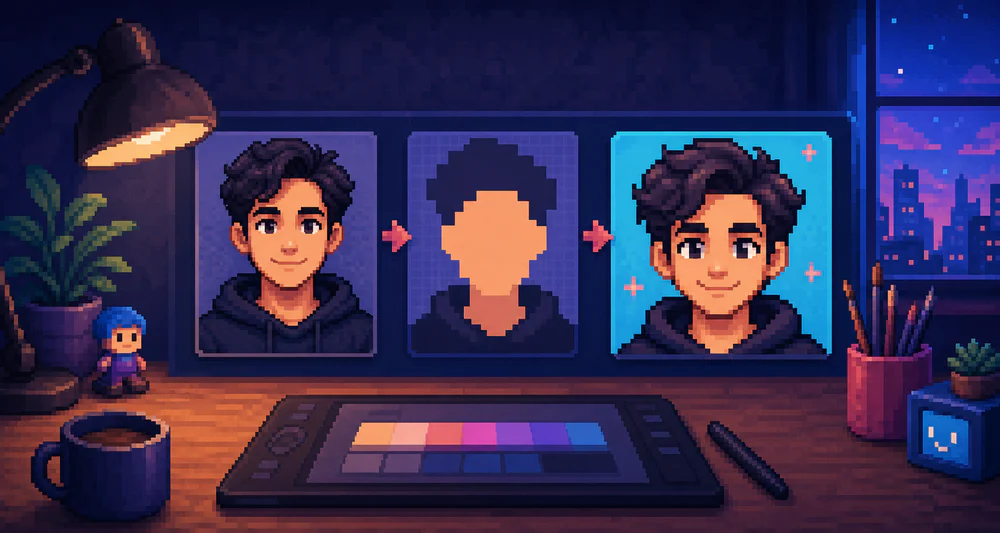
A pixel avatar has very little room, yet people recognize a face from a handful of cues. Hair shape, glasses, eyebrow angle, and the space between features often matter more than skin texture.
Your job is to protect those cues while removing everything else.
Choose a photo with a clear read
Use a front-facing or slight three-quarter portrait. Soft, even light is easier to simplify than a hard spotlight. Make sure the hair does not blend into the background.
Avoid:
- tiny faces inside full-body photos;
- beauty filters that erase structure;
- strong colored lighting;
- hair covering both eyes;
- backgrounds with lines crossing the head.
A phone portrait is fine. Good separation matters more than expensive equipment.
Crop for the final shape
Most profile images appear as a square or circle. Crop before converting so the face uses the available grid.
Leave a little breathing room above the hair and around the shoulders. If the platform uses a circular mask, keep distinctive hair, hats, and glasses away from the extreme corners.
The face should usually occupy around half to two-thirds of the frame height. Too small, and the features vanish. Too close, and the hairstyle and head shape are lost.
Simplify in the right order
Open the crop in PixelTool. First adjust pixel size. Find the coarsest setting where both eyes, the mouth line, and the outer hair shape remain readable.
Then reduce colors. A useful starting range is 16–24 colors. You may need more for complex hair or glasses with reflections, but do not keep colors just to preserve skin texture.
Watch these landmarks:
- hairline and overall hair silhouette;
- eyebrow direction;
- glasses frame shape;
- nose shadow rather than the full nose outline;
- mouth angle;
- separation between jaw and neck.
If one of these disappears, step back before changing unrelated settings.
Let asymmetry stay
Perfectly mirrored faces can feel generic. A raised eyebrow, side part, single earring, or uneven smile may be the feature friends notice first.
Do not remove every irregularity. Remove noise, not identity.
At the same time, isolated bright pixels on skin usually read as artifacts. A small avatar benefits from broad, calm color areas.
Test at real avatar size
Zoomed-in pixel art is useful for inspection, but it is not how the avatar will be seen. Preview it around 48, 64, and 96 pixels.
Ask:
- Is the expression clear?
- Does the hair read against both light and dark UI?
- Do glasses become a solid bar?
- Does a circular crop remove anything important?
If the avatar works only at 400 pixels, it needs simpler shapes or stronger contrast.
Export a clean master
Export a square PNG at a useful size, such as 512×512, while keeping the internal pixel grid crisp. Platforms may resize it, so also keep your original PNG or SVG.
Avoid repeatedly downloading, resizing, and re-uploading the same file. Each extra processing step can introduce soft edges.
A recognizable pixel avatar is not a miniature photograph. It is a compact set of deliberate clues. Keep the clues; let the rest go.