
Tutorial
PixelTool works instantly in your browser: upload an image, adjust two controls, and watch your pixel art take shape in real time.
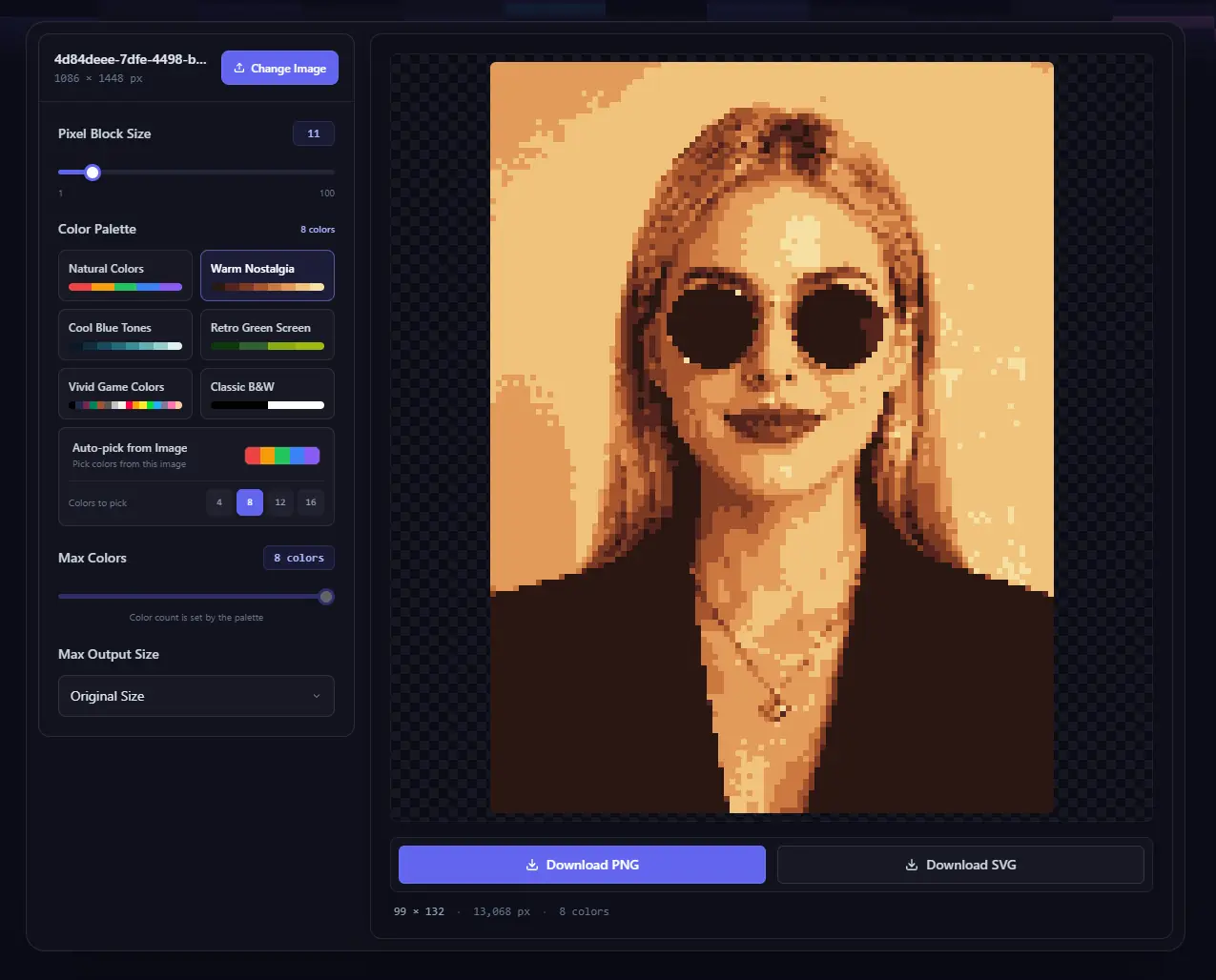
Create pixel art in 3 quick steps
1. Upload an image
Click or drag an image into the upload area and the preview appears right away. JPEG, PNG, GIF, WebP, and BMP are supported, up to 30MB per file.
Tip: Images with a clear subject and good contrast preserve their outlines and details more effectively.
2. Shape the pixel style
Set “Pixel Block Size” first: lower values retain more detail, while higher values create a bolder retro look. Then adjust “Max Colors”: 256 colors stays closer to the original; fewer colors create a tighter retro palette.
Quick tip: For portraits, start with a pixel size of 1–8. For a stronger retro feel, try 9–25 first.
3. Choose an output size and download
Choose Original Size or a preset under “Max Output Size”, then download your result. PNG is ideal for web and social sharing; SVG works well for scalable game assets and web design.
Privacy note: Images are processed locally in your browser and are never uploaded. The preview may be scaled down, but exports use the full size you choose.