
How to Choose the Right Pixel Block Size
A practical guide to choosing pixel block size for portraits, landscapes, icons, and game assets without losing the subject.
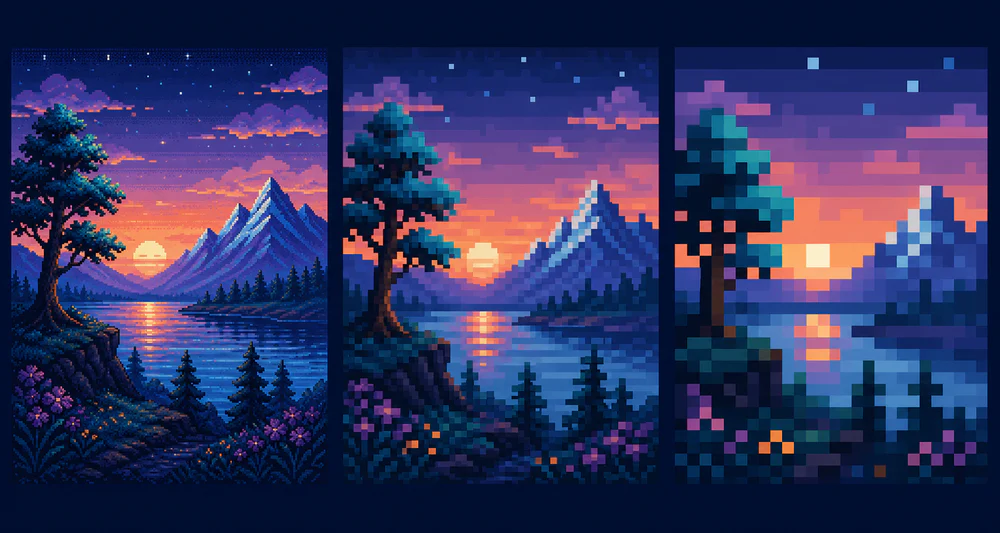
Pixel block size controls the visual grammar of a conversion. Small blocks describe texture. Large blocks force the image to speak through shape.
There is no universally correct value. The useful question is: what must remain readable at the final display size?
Think in effective resolution
A block size is easier to judge when you translate it into an approximate grid. If a 1024-pixel-wide source is sampled in 16-pixel blocks, the artwork has roughly 64 columns of visual information. At 32-pixel blocks, it has about 32.
That difference is enormous. A face that works on a 64-column grid may become three patches of color on a 32-column grid.
Instead of chasing a specific slider number, look at the number of blocks across the subject.
Fine blocks: keep structure and texture
Use a smaller block size when:
- the image contains several people;
- facial likeness matters;
- there is thin line work or lettering you cannot crop out;
- the output will be viewed large.
Fine blocks are safer, but they can look like a low-resolution photo rather than pixel art. Reduce the palette or increase the block size slightly if the result feels noisy.
Medium blocks: the dependable middle
For most portraits, pets, products, and landscapes, a medium setting is the best first pass. It removes camera texture while leaving enough room for eyes, edges, and material changes.
I look for three signs:
- The silhouette is clean.
- Important features occupy more than one block.
- Flat areas are calm rather than speckled.
If all three are true, palette reduction becomes much easier.
Large blocks: commit to the abstraction
Bold blocks suit icons, background art, album-style graphics, and intentionally chunky game assets. They work best with a centered subject and strong lighting.
At this scale, every block is a design decision. A one-block shift can change an expression or break a curve. Do not expect a detailed group photo to survive.
Large blocks also expose weak compositions. If the subject and background share similar values, they will merge quickly.
Match the block size to the destination
Start from where the image will appear:
- Profile image: keep the eyes and head shape clear at 48–96 CSS pixels.
- Game sprite: test it inside the actual game camera, not only in a large editor preview.
- Website illustration: check desktop and mobile widths.
- Printed graphic: export large, but keep the internal grid consistent.
Always preview at the intended display size. Enlarging a tiny sprite to fill the screen can make a perfectly good result seem crude.
A simple selection method
In PixelTool, move from fine to coarse rather than guessing:
- Start with a small block size.
- Increase it until unimportant texture disappears.
- Keep going until one important feature is damaged.
- Step back once.
- Adjust the color count only after the geometry feels right.
This “break it, then step back” method is quicker than polishing a setting that was too fine from the start.
Avoid fractional scaling later
After export, display pixel art at whole-number multiples whenever possible: 2×, 3×, 4×. A 3.5× scale forces the browser or design app to interpolate edges, which can create blur or uneven block widths.
The best block size is the coarsest one that still tells the truth about the subject. Anything finer is optional detail; anything coarser changes the subject itself.